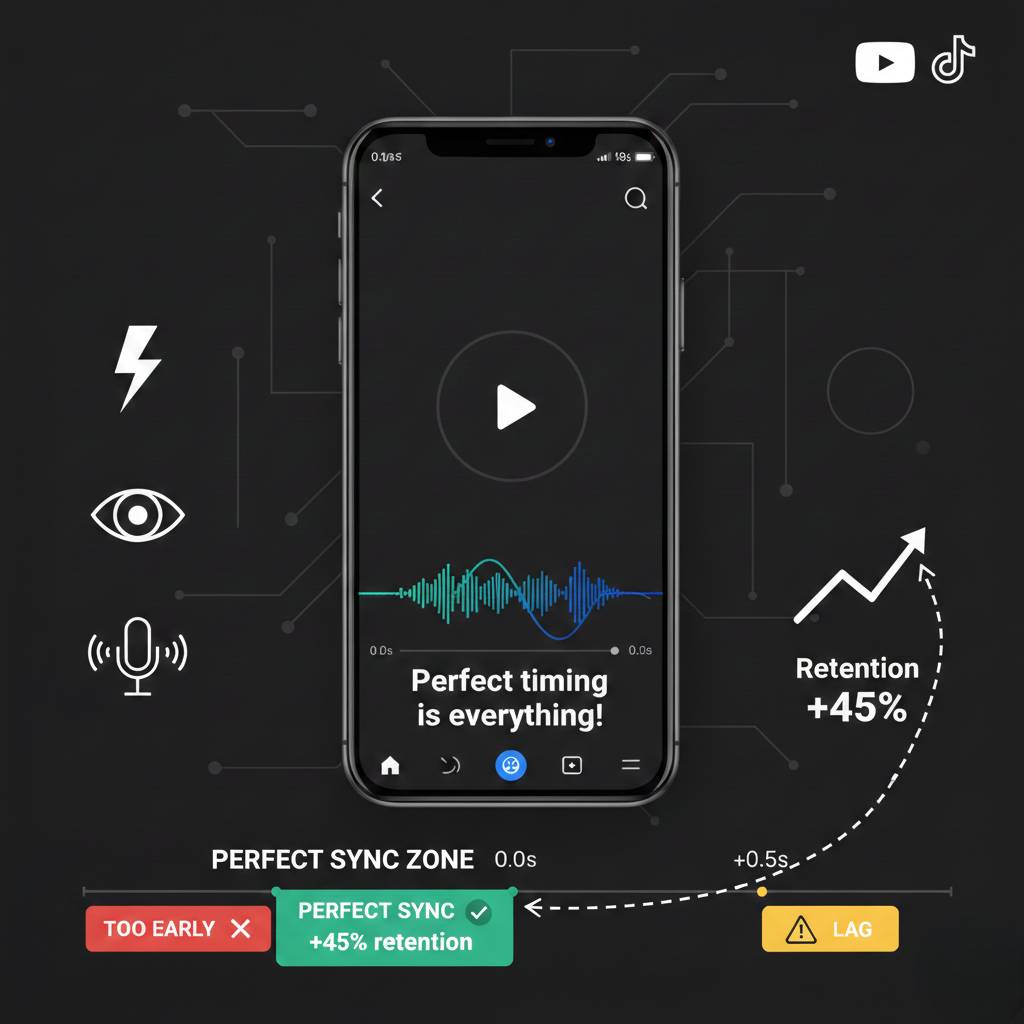
Subtitle timings are the key to professional video content on YouTube, TikTok, or podcasts. These are timecodes in SRT files that precisely control when text appears and disappears on screen, synchronizing it with speech. Without accurate timings, subtitles "jump," lag behind the voice, or cover important frames, reducing viewer retention. In modern TTS systems, voice generation starts exactly at the timestamp—for example, 00:00:00,300 for the first line, creating a live speech effect.
This article covers everything: SRT structure, millisecond precision importance, tool-based checks, and practical tips. You'll create professional-looking subtitles without extra edits.
What Are Subtitle Timings: Structure & Standards
SRT is the standard subtitle format, compatible with all players: VLC, YouTube, Premiere Pro, DaVinci Resolve. Each block has a clear structure:
- Subtitle number (1, 2, 3... for sequence).
- Timings:
HH:MM:SS,mmm --> HH:MM:SS,mmm(comma separates seconds/milliseconds; US uses period). - Dialogue text:
Character limits:
- 📱 Mobile/Fast-paced: 35 characters/line (70 max.)
- 🗣️ Lectures/TTS sites: 200-500 characters (7-12 sec)
- ⚖️ Rule: Match content & speech tempo
- Empty line for block separation.
Full example for video intro:
1
00:00:00,300 --> 00:00:02,500
Hello! Today about subtitle timings.

2
00:00:02,600 --> 00:00:04,200
They're critical for voice sync.

3
00:00:04,300 --> 00:00:06,000
Let's break it down step by step.
Readability standards (from Netflix/YouTube guidelines):
- One line: 3-5 seconds (21-35 characters).
- Two lines: 5-7 seconds (~15 characters per second reading speed).
- Gap between subtitles: 200-500 ms (subtitle disappears 0.2-0.5 sec before next to avoid flicker).
- General rule: Text reads in 70% of display time, rest for absorption.
Millisecond precision is mandatory in subtitles-to-speech: TTS starts exactly at the first cue. A 50 ms shift is noticeable—viewers feel eye-ear dissonance.
Why Millisecond Precision Matters
Imagine fast-paced video: cuts every 2 seconds, emotional lines. If subtitle appears 100 ms after voice, sync breaks. The brain processes audio+text in parallel; minimal lag drops engagement.
Platform data:
- YouTube: Accurate subtitles boost watch time 20-30%, as algorithm favors retention.
- TikTok/Reels: Subtitles increase completion rate 40%, especially with TTS voiceover.
- Podcasts/lessons: Natural sync makes content accessible for hearing-impaired.
In Voicertool, voice generates via advanced AI: natural pauses, intonation, exact start at timestamp (00:00:00,300 for "Good day."). No buffering—audio waveform matches SRT 1:1. Perfect for dynamic content where every millisecond counts.
Generate MP3 per phrase — exact start at timestamp Voicertool
How to Check Timings Manually: Step-by-Step Tools
Don't rely on "auto-sync"—always test. Here's the free tool stack.
1. Audacity — Audio Analyzer (Waveform Control)
- Generate MP3 voiceover (e.g., in Voicertool).
- File > Import > Audio.
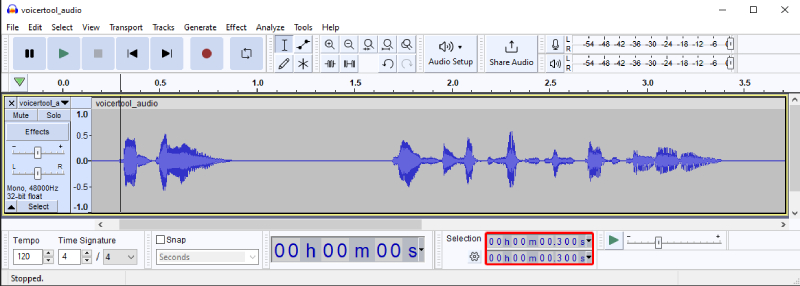
- Track > Labels > Add Label at Selection (Ctrl+B), enter SRT timings manually.
- Zoom 10x (Ctrl+1): Voice peaks (phrase starts) must align with labels within 10-30 ms.
Voicertool specifics: "Good day." waveform starts exactly at 00:00:00,300—perfect match, no edits needed.
2. Aegisub — Pro Subtitle Editor
- File > Open Subtitles (SRT).
- Audio > Load Audio (TTS MP3).
- Select subtitle > Space to play > Arrow keys to shift by waveform.
- Timing > Post-Processor (optional) — auto-aligns gaps.
- Export: File > Export Subtitles > SRT.
Aegisub displays audio waveform under text—ideal for precise positioning.
3. VLC Media Player & YouTube Studio — Final Test
- VLC: Media > Open File (video + SRT via Subtitles > Add File). Speed: Ctrl + ↓ (0.5x). Does subtitle vanish 0.2 sec before next?
- YouTube Studio: Content > Details > Subtitles > Upload SRT. Auto-check: Green marks = OK, red = errors >100 ms.
Full test protocol (10 min for 5-min video):
- Generate voiceover with timings.
- Overlay on video in Premiere/DaVinci.
- Listen to 10-20 phrases at 0.8x, 1x, 1.2x speeds.
- Measure in Audacity — shift <30 ms = pro level.
Practical Tips for Perfect Timings: 12 Golden Rules
- Logical breaks: >35 chars? Split: "Very long phrase that doesn't fit one line" → Two phrases with gap.
- Block gaps: 300-500 ms — subtitle #1 ends
00:00:02,500, #2 starts00:00:02,600. - Readability: 15-20 chars/sec. Test: Reads in 70% display time.
- Intonation sync: Match speech pauses (commas=200ms, periods=500ms). Short phrases — 2-3 sec.
- Edit nuances: Fast video? Shorten 20% (pace > readability).
- Aegisub macros: Transform > Visual Tools > "Unpack lines" for auto-splitting.
- Speed tests: 0.8x (slow), 1.2x (fast) — text doesn't lose sync.
- Visual clarity: Subtitles don't cover faces/text/objects.
- YouTube/TikTok optimization: Short phrases (1-2 sec), bold font, screen center.
- Batch processing: >30 min — import full SRT to Aegisub, apply global shifts.
- Final audio test: Headphones, full volume — naturalness first.
- Export checklist: UTF-8 encoding, comma milliseconds, no numbering gaps.
Ready SRT example for a clip:
1
00:00:00,300 --> 00:00:01,050
Good day.

2
00:00:01,700 --> 00:00:04,000
This is a text-to-speech converter.

3
00:00:04,400 --> 00:00:06,850
SubRip Subtitle (SRT) format.
FAQ: Top Questions Answered
- Acceptable error? <30 ms for pro content; Voicertool delivers 0 ms.
- Time per subtitle? 3-7 sec based on lines/complexity.
- Free tools? Audacity, Aegisub, VLC — full kit.
- For TikTok/Reels? 1-3 sec/phrase, large letters.
- TTS integration? Generate MP3 per phrase — exact timestamp start.
- Time for 10-min video? 1-2 hours with practice.
Generate MP3 per phrase — exact start at timestamp Voicertool
Perfect timings turn amateur clips into studio-quality. Workflow: text → SRT → voiceover → test → edit. Start with a simple video—you'll see engagement boost. Your content deserves flawless sync!
Try Now!
Head to Subtitles-to-Speech, upload SRT → select voice → download MP3/WAV. Save hours of editing time!